Self-Order: user manual
QR self-order and table reservations for restaurants. For izakaya, ramen shops, cafés and small restaurants.
Watch: the whole app in under a minute
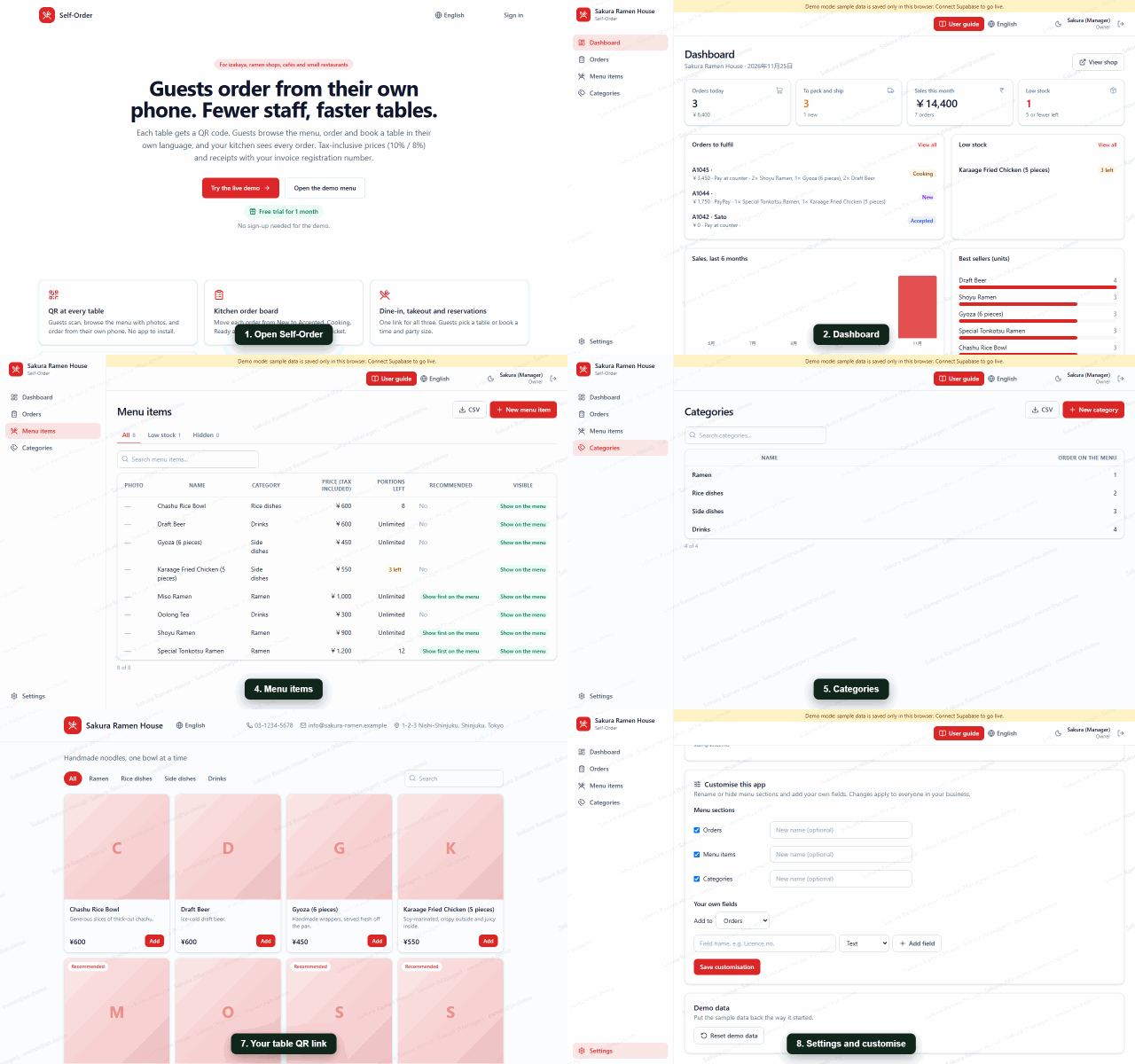
Step by step
- Open Self-Order
Open https://selforder.humaap.in on a phone or computer. Click “Try the live demo” to look around with sample data, or sign up to start your free 1-month trial.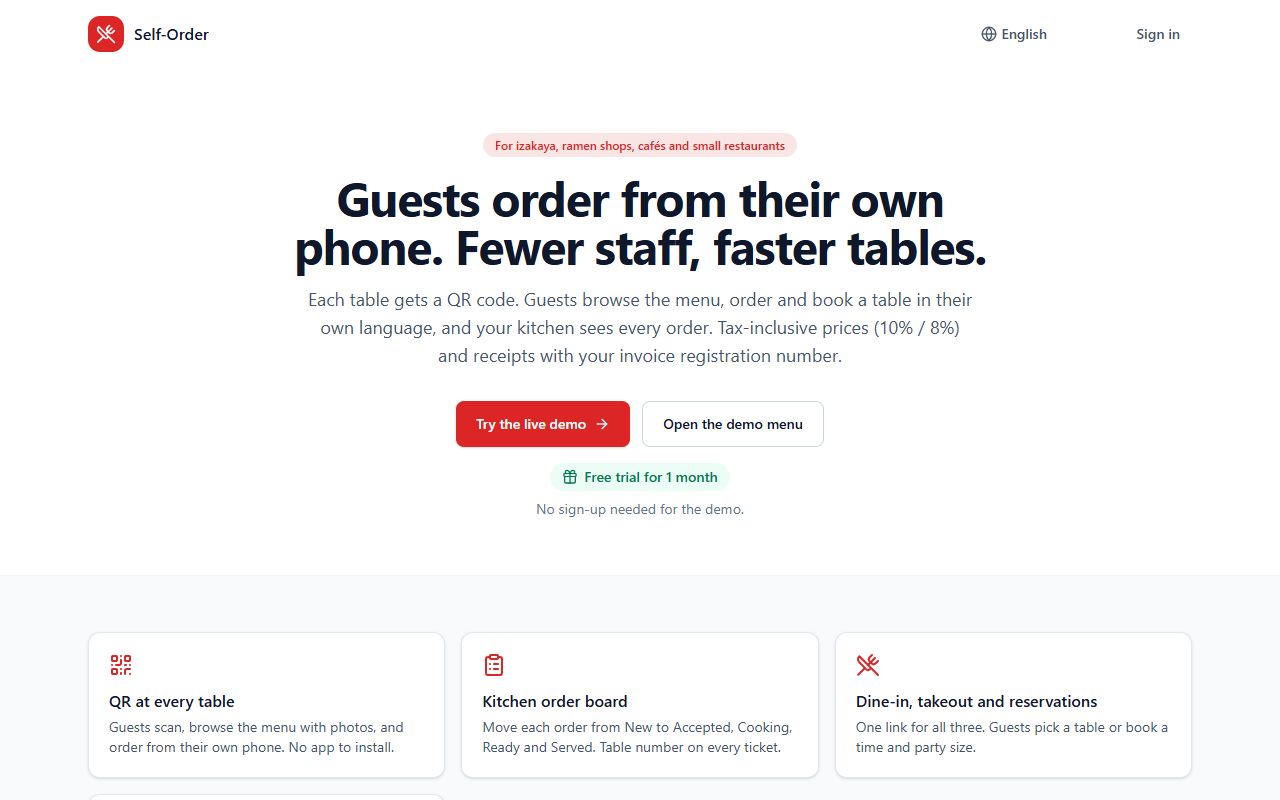
- Dashboard
The dashboard shows today’s numbers and what needs your attention. Click a panel title to open the full list.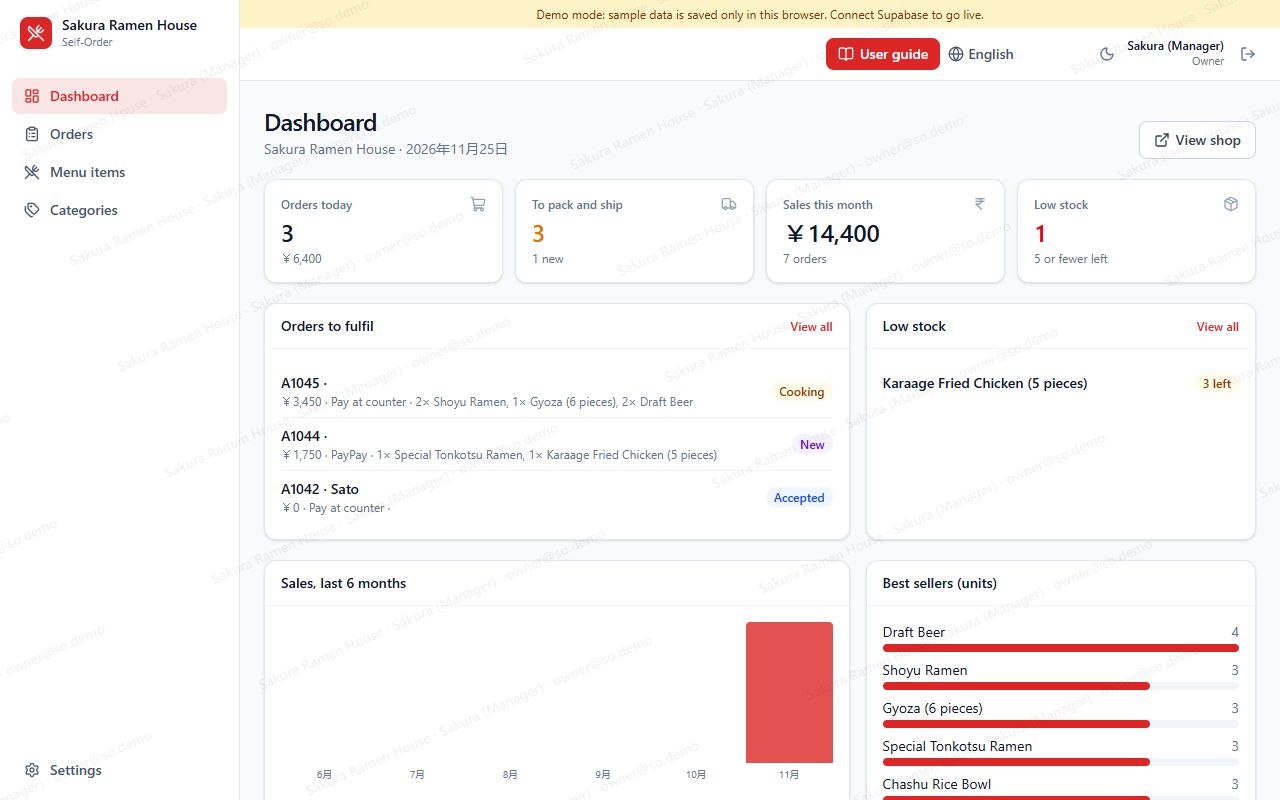
- Orders
Each order holds: Order no., Type, Table, Guest name, Phone, Party size, Reservation time, Payment. Tabs at the top filter the list (In progress, New, Reservations, Unpaid, All). Open a record to use: Move to next step, Mark paid, Print receipt, Cancel order.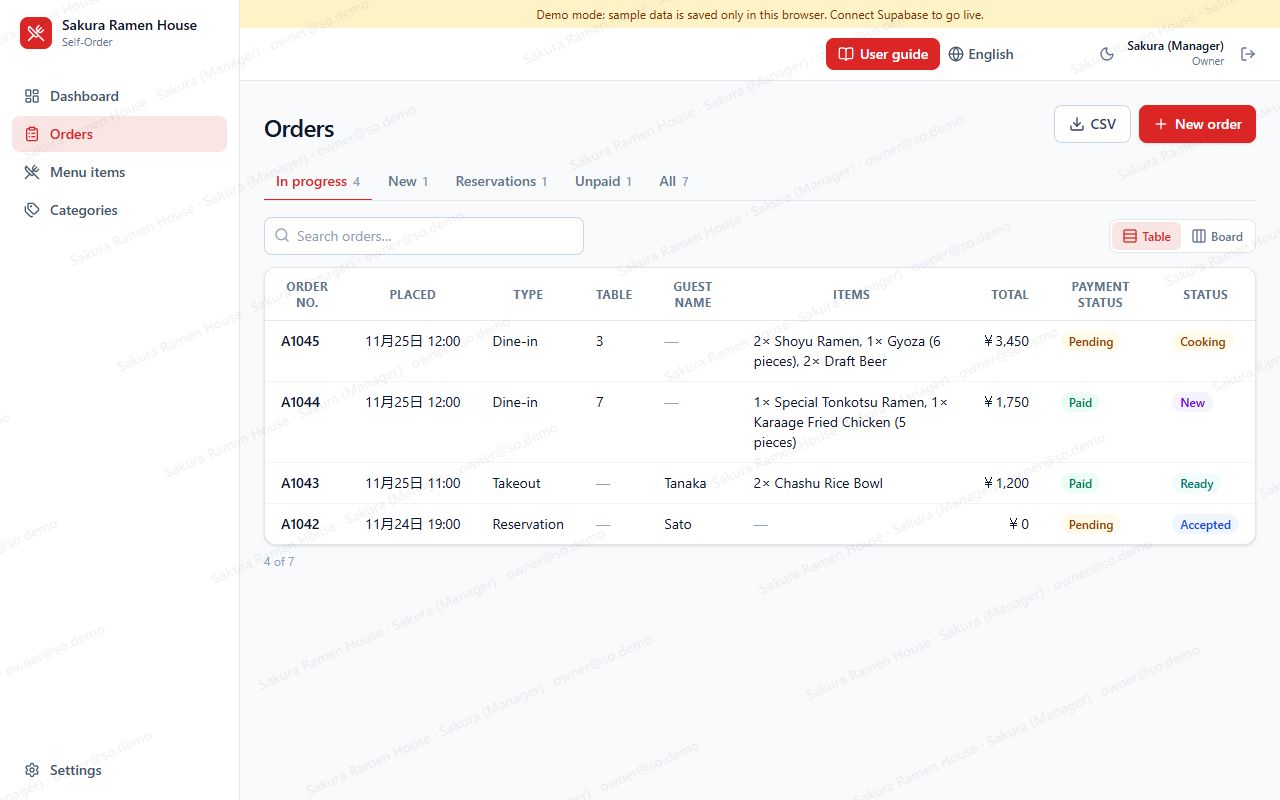
- Menu items
Each menu item holds: Name, Category, Price (tax included), Portions left, Photo, Description, Recommended, Visible. Tabs at the top filter the list (All, Low stock, Hidden).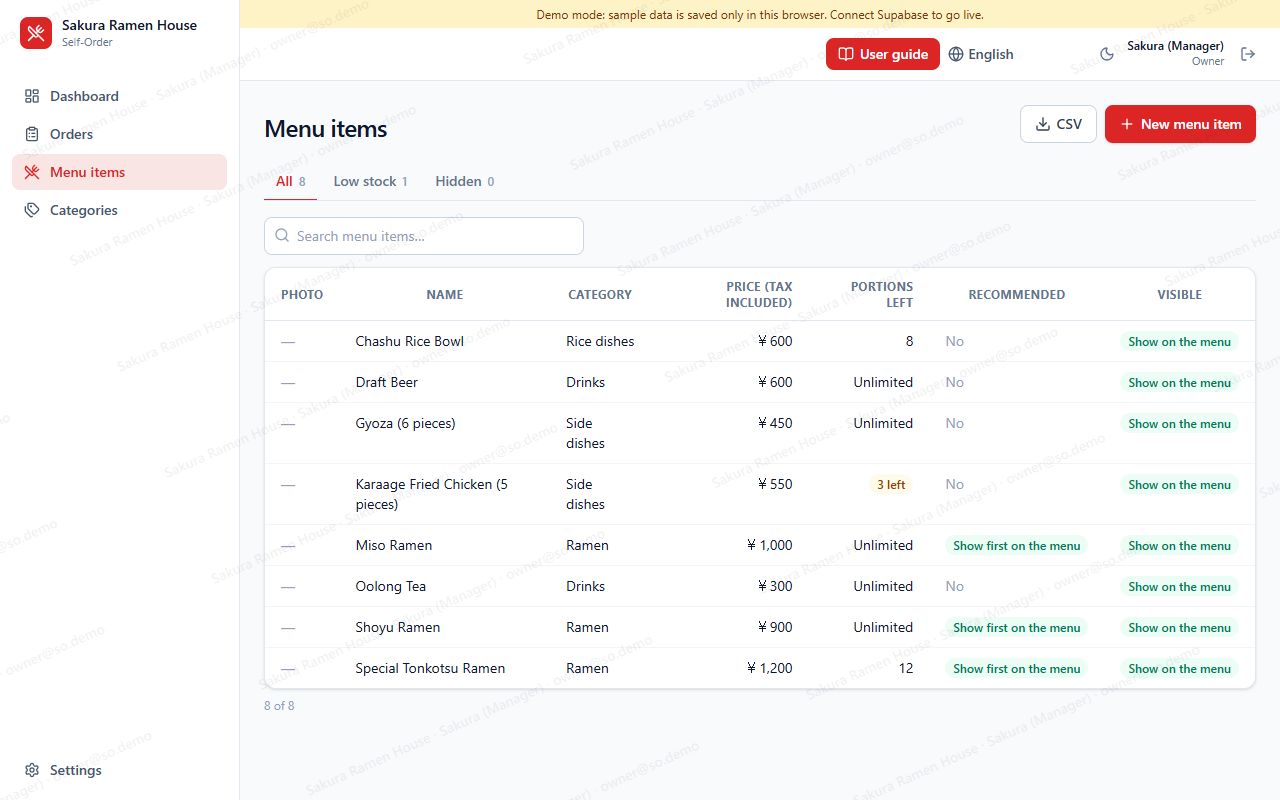
- Categories
Each category holds: Name, Order on the menu.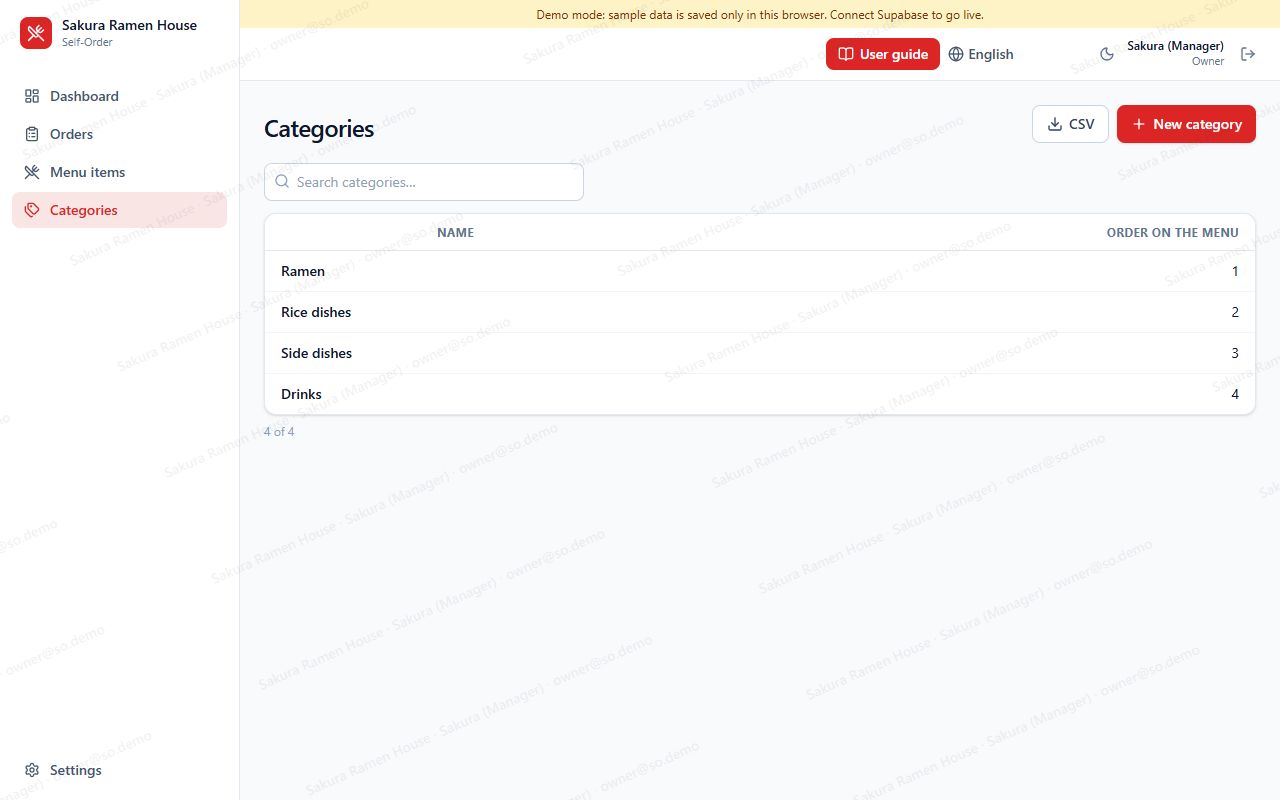
- Add a order
Click “New order”, fill in the form and click Add. Fields marked * are required.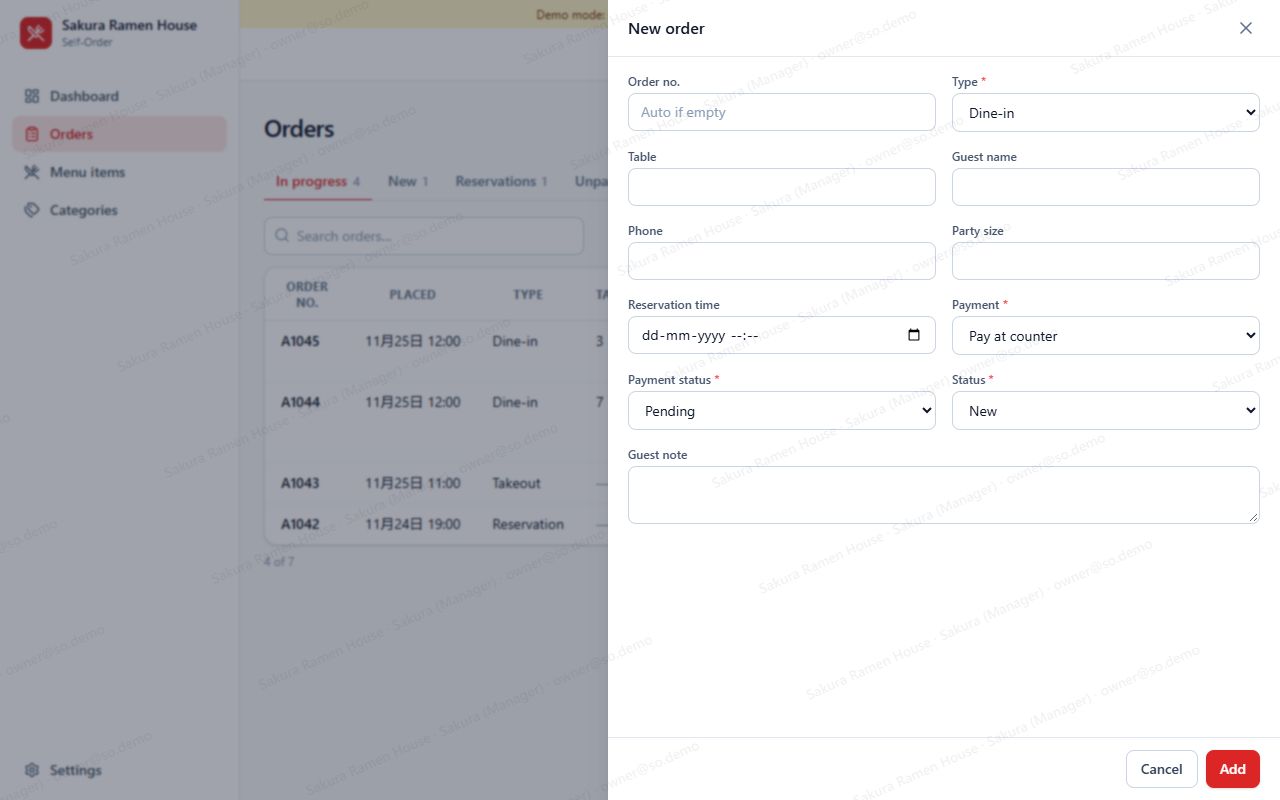
- Your table QR link
Print one QR code per table: add &t=5 to the link for table 5. Orders appear under Orders → New. Find your link in Settings and share it on WhatsApp, Instagram or Google.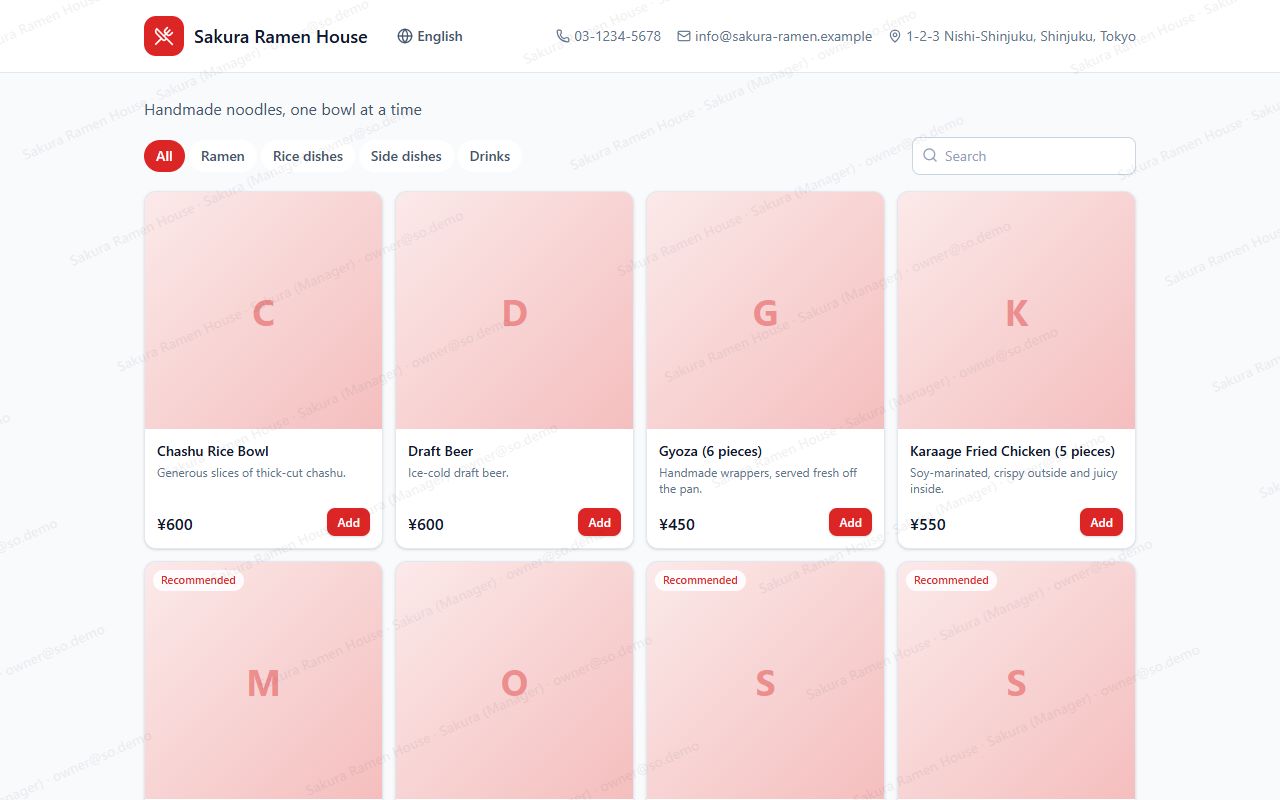
- Settings and customise
Add your business details and logo, invite your team with the join code, and use “Customise this app” to rename or hide menus and add your own fields. Change the language from the globe menu.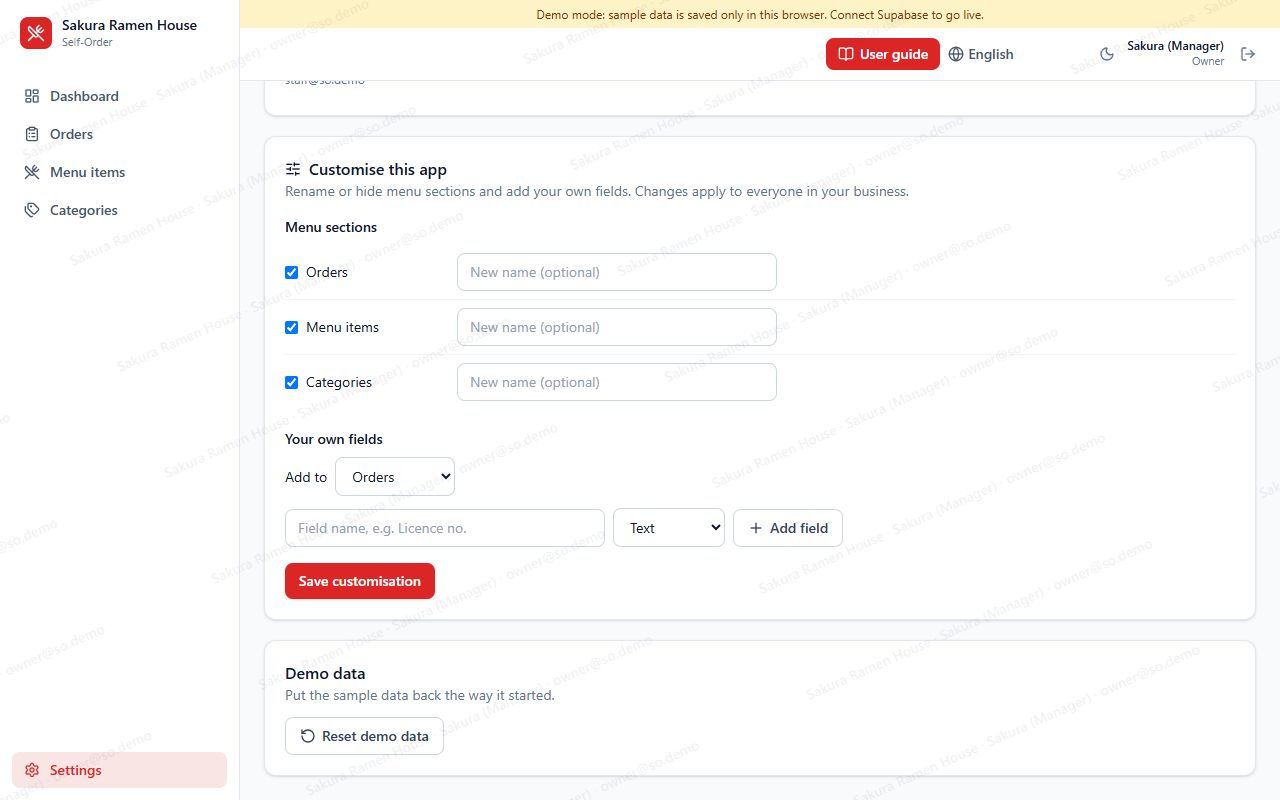
Good to know
- The demo uses sample data saved only in your browser; sign up to use your own data.
- Screens are protected: copying, printing and screenshots are discouraged, and every screen carries a faint watermark with the user’s name.
- Only owners and managers can download data (CSV).
- Works on phone and computer, in 12 languages (globe menu).